
Managing screen time and keeping your home network safe matters more than ever. In 2026 routers do more than share internet: they help you enforce schedules, filter content, and protect devices from threats. Choosing the right parental control router means you can set healthy limits, reduce distractions during homework or bedtime, and protect your family’s privacy — all from an app or web dashboard.
This guide helps you compare fast hardware, parental features, ease of use, and value so you can pick a router that fits how you and your household live online.
Top Picks
Category | Product | Score |
|---|---|---|
💰 Best Budget | 75/100 | |
🚀 Best for Speed | 90/100 | |
🔰 Best for Security | 91/100 | |
🎯 Best for Mesh | 89/100 | |
⭐ Best for Parental Controls | 82/100 |
How We Picked
You want a router that balances speed, security, and parental controls without adding friction to daily life. We prioritized: 1) Parental control features — scheduling, content filtering, per-child profiles, and time limits; 2) Security — malware blocking, automatic updates, and device protection; 3) Real-world performance — Wi‑Fi generation, coverage, and device capacity; 4) Ease of use — app or web interface that lets you manage controls quickly; 5) Value and price — from budget options to premium systems that provide extra protections or mesh expandability.
We also weighed unique strengths like future-proof Wi‑Fi 7 support, 2.5G ports, and mesh/expandability so you know which router fits your home setup.
💰 Best Budget
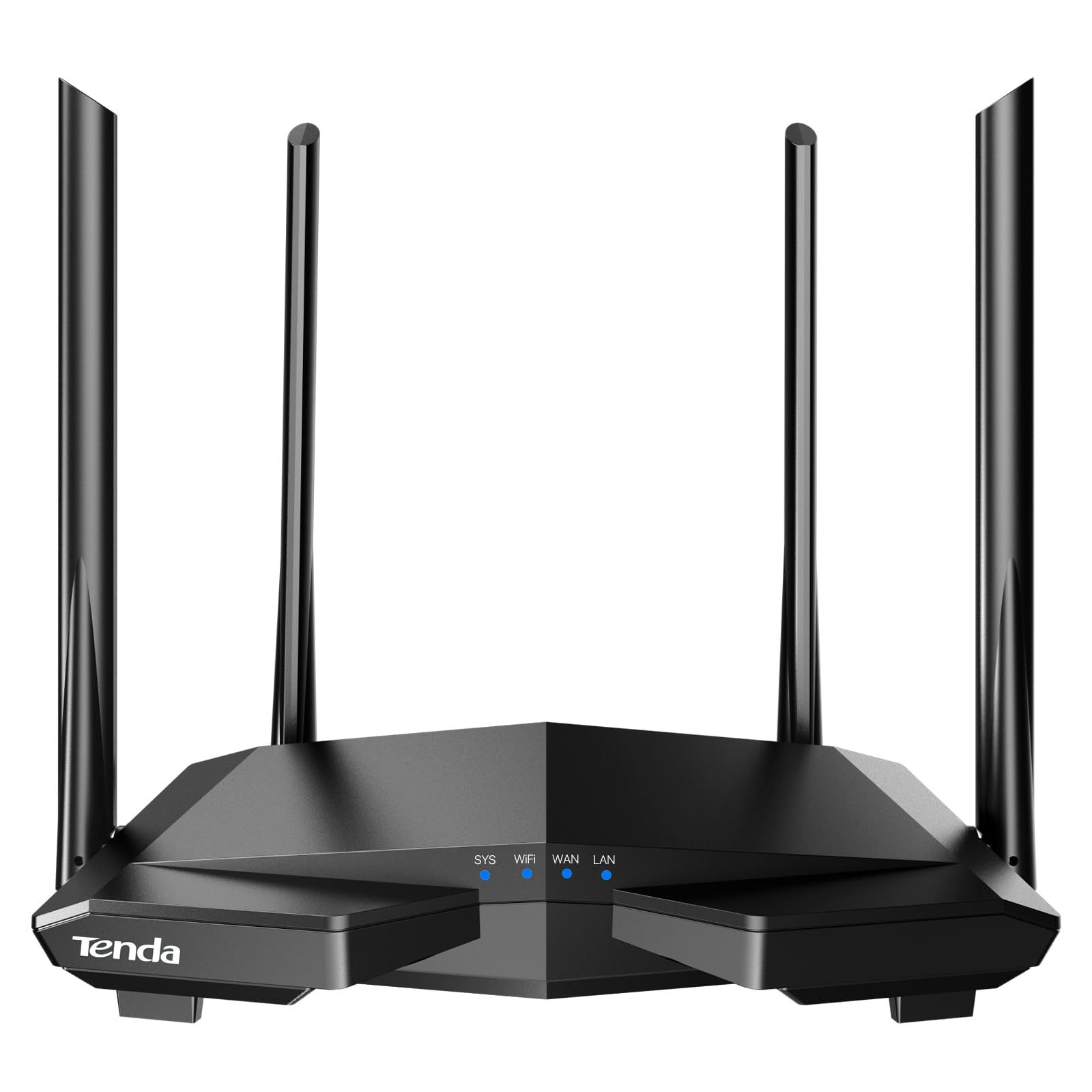
Tenda AC6
You’ll find the Tenda AC6 is one of those routers that makes life simple. It covers a small-to-medium home with decent Wi‑Fi thanks to four external antennas and beamforming, and the mobile app walks you through setup step by step so you’re not wrestling with settings.
For everyday use you can stream, game lightly and keep video calls stable; when you want to limit screen time you can schedule internet access or pause devices from the app. It’s especially handy if you need a quick guest network, want an easy access-point setup, or need a budget router for a second location like a cabin or student flat.
If you want advanced enterprise-grade security or gigabit wired ports, this isn’t that — but if you want an affordable, usable router that helps you manage family screen time, it’s a solid pick you can get running in minutes.
What People Say
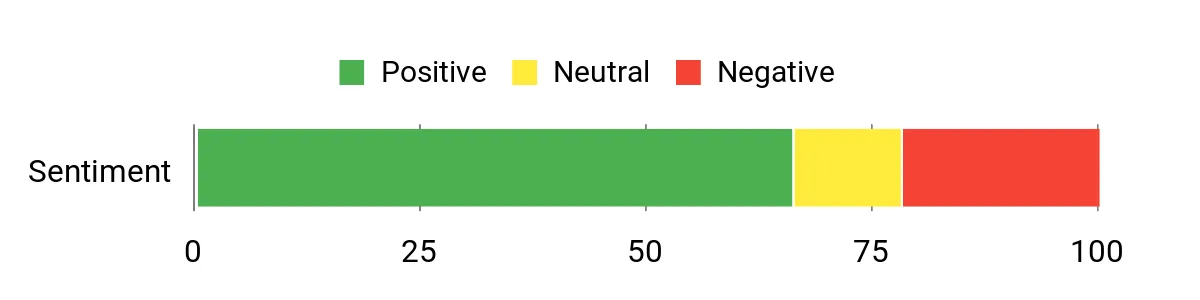
Most buyers praise the AC6 for being reliable and easy to set up, with an app that makes monitoring and pausing devices straightforward. People often mention solid Wi‑Fi range and useful basics like guest network and scheduling, while a portion of users note limits such as 100 Mbps LAN ports and advise keeping firmware current for security.
Overall Sentiment: Mixed
Situational Benefits
Situation | How It Helps |
|---|---|
Homework and Bedtime | You can set schedules or pause tablets and consoles so internet time matches homework routines or bedtime rules. |
Hosting Guests | Create a guest network to give visitors access without exposing your main devices or files. |
Small Apartments or Second Homes | Compact size and easy AP mode make it a quick way to add reliable Wi‑Fi in a spare place or rental. |
Streaming and Light Gaming | Dual‑band support and beamforming keep multiple streams running smoothly for family movie nights. |
Ease Of Use
Feature | Ease Level |
|---|---|
Mobile App Setup | Easy |
Web Admin Interface | Moderate |
Parental Control Scheduling | Easy |
Advanced Network Settings | Moderate |
Safety Features
Includes parental controls, guest network isolation and basic internet scheduling through the app. Users recommend checking for firmware updates and using secure admin credentials to reduce risk.
Child Friendliness
The router is family-friendly: you can assign devices, set daily schedules, and pause internet access from your phone, which is perfect for managing screen time without a lot of fuss.
Security Features
Feature | Protection Level |
|---|---|
Guest Network | Basic isolation |
Parental Controls (time & site blocks) | Basic control |
IPv6 Support | Moderate — functional but requires careful setup |
Firmware Updates | Limited — manual updates recommended |
Reliability
Many users report steady day‑to‑day performance and stable Wi‑Fi coverage, though a subset have encountered issues or expressed security concerns, so routine updates and sensible password practices are advised.
Key Benefits
- Easy setup and a simple mobile app for remote management
- Built-in parental controls to schedule or pause internet for devices
- Good wireless coverage for typical homes thanks to four antennas
- Guest Wi‑Fi and access point mode for flexible use cases
Rating: 4.0 (total: 18701+)
🚀 Best for Speed

Nighthawk RS90
You’ll notice this Nighthawk is built around raw performance — it leans into WiFi 7 to give you smoother 4K/8K streaming, low‑latency gaming, and reliable video calls when multiple people are online. Setup is straightforward with the Nighthawk app, so you can get it running without getting bogged down in menus.
In daily life it’s great for households that stream and game at the same time, and for special occasions like hosting a movie night or running a remote work session where several devices need steady bandwidth. Just remember it’s a router only (no built‑in modem), and while the faster bands are awesome close to the unit, you may still need a mesh node if you’ve got lots of walls or a very large home.
If you want top speed and easy app control to manage devices and priorities, this is a solid pick.
What People Say
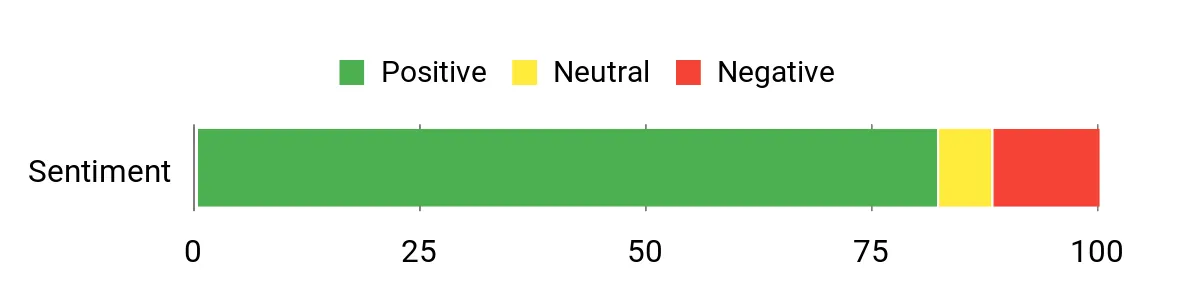
Buyers frequently praise the RS90 for its speed and how it handles many devices at once, noting clear improvements for gaming and streaming. People also like the Nighthawk app for setup and basic management, and many point out the value of NETGEAR Armor. A recurring caveat is that the highest‑frequency bands don’t travel through walls as well, and a few users mention firmware or app hiccups that are typically resolved with updates or simple tweaks.
Overall Sentiment: Positive
Situational Benefits
Situation | How It Helps |
|---|---|
Family Streaming Nights | Keeps multiple 4K streams running smoothly so everyone can watch without buffering or fights over bandwidth. |
Gaming Sessions | Lower latency and strong local throughput help you avoid lag during online play, especially when others are using the network. |
Remote Work & Video Calls | Stable connections for video conferencing, so you won’t drop out in the middle of a meeting when someone else starts a download. |
Smart Home Hub | Supports dozens of smart devices so cameras, speakers and thermostats can stay connected alongside phones and laptops. |
Ease Of Use
Feature | Ease Level |
|---|---|
Mobile App Setup | Easy |
Web Admin Interface | Moderate |
Parental Controls & Device Management | Easy |
Advanced Network Tweaks | Moderate |
Safety Features
Includes NETGEAR Armor (30‑day trial) for threat detection across connected devices, guest network isolation and basic parental control options via the app. It’s wise to keep firmware updated and use a strong admin password for best protection.
Child Friendliness
You can manage devices and schedule or pause internet access from the app, which makes it practical for limiting screen time without a lot of fuss. It’s not a kid‑centric product, but the tools you need to enforce rules are there and easy to use.
Security Features
Feature | Protection Level |
|---|---|
NETGEAR Armor (trial) | High — device threat detection and protection |
Guest Network | Basic isolation |
Built‑in security measures and updates | Moderate — improves with regular firmware updates |
App-based device controls | Moderate — convenient for quick management |
Reliability
Most users report stable day‑to‑day performance and strong wired/wireless speeds, though a minority see occasional dropouts or band‑specific range quirks. Regular firmware updates and a bit of initial tuning usually smooth out issues.
Key Benefits
- Very fast WiFi 7 performance for streaming, gaming and large households
- 2.5 Gig internet port for multi‑gig ISP plans or high‑speed wired devices
- Covers up to ~2,000 sq. ft. and supports around 50 devices
- NETGEAR Armor provides an added layer of device protection (trial included) and app management keeps control in your pocket
Rating: 4.3 (total: 1521+)
🔰 Best for Security

TP-Link Archer BE6500
If you want a router that balances modern speed with practical security tools, this Archer model is a good fit. You’ll get Wi‑Fi 7 features like Multi‑Link Operation and 4K‑QAM that help keep streaming and downloads smooth, plus dual 2.5 Gbps ports for faster wired gear.
The Tether app makes setup straightforward, and HomeShield gives you built‑in parental controls and a network scanner so you can manage devices and screen time without juggling multiple services. In everyday life it’s solid for juggling video calls, homework browsing sessions, and family streaming; for special occasions like a gaming marathon or a video party, the extra wired and wireless capacity keeps things stable. If you care about keeping your kids safe online and don’t want to sacrifice modern speed, this is a practical, family‑friendly pick.
What People Say
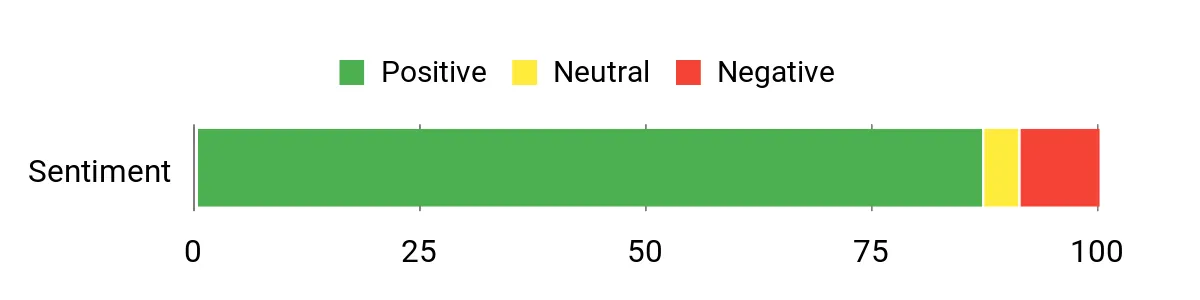
Customers commonly highlight the improved speeds and solid coverage compared with older routers, and many appreciate how easy the Tether app makes setup. Reviews also note HomeShield as a helpful way to manage kids’ access and spot IoT issues, while a few people mention having to reconfigure smart devices after switching routers or seeing occasional app/firmware quirks that were usually fixed with updates or support.
Overall Sentiment: Positive
Situational Benefits
Situation | How It Helps |
|---|---|
Family Streaming Nights | Handles multiple 4K or HD streams at once so everyone can watch without buffering or fights over bandwidth. |
Homework & Study Time | Use parental schedules and pause features to limit distractions during study hours while keeping necessary devices online. |
Gaming Sessions | Lower latency and fast local throughput help reduce lag for consoles and PCs, especially when others are streaming. |
Smart Home Management | Separate IoT SSID and HomeShield scanning make it easier to isolate and monitor cameras, thermostats and other smart devices. |
Ease Of Use
Feature | Ease Level |
|---|---|
Tether Mobile App Setup | Easy |
Web Admin Panel | Moderate |
HomeShield Parental Controls | Easy |
Advanced Network Settings | Moderate |
Safety Features
HomeShield provides a real‑time network scanner, parental controls for scheduling and content filtering, plus support for WPA3, guest networks, SPI firewall and IP/MAC binding. Automatic cloud updates help keep protections current—just keep firmware and the app up to date.
Child Friendliness
You can set schedules, pause internet for individual devices and block categories of content from the app, which makes enforcing screen‑time rules straightforward. It isn’t a toy for kids, but it gives you the practical controls you need to manage online time without micromanaging every device.
Security Features
Feature | Protection Level |
|---|---|
TP‑Link HomeShield (real‑time scanner) | High — threat detection and device monitoring |
WPA3 Encryption | High — modern wireless encryption |
Guest Network / IoT SSID | Basic — isolates visitors and smart devices |
SPI Firewall & IP/MAC Binding | Moderate — helps block unsolicited access and lock devices |
Reliability
Most users report steady day‑to‑day performance with good wired and wireless speeds; a few mention occasional app or firmware hiccups but say updates or support fixed them. Overall it feels stable once it’s configured for your home.
Key Benefits
- Wi‑Fi 7 tech (MLO, Multi‑RUs, 4K‑QAM) for faster, more consistent wireless performance
- HomeShield security and parental controls built into the app for managing screen time and content
- Dual 2.5 Gbps ports plus USB 3.0 for high‑speed wired devices and backups
- Wide coverage (up to 2,400 sq. ft.) and support for many devices (around 90)
- EasyMesh support to expand coverage without a complicated setup
Rating: 4.4 (total: 755+)
🎯 Best for Mesh

ASUS BE58U
If you want a future‑ready home network that’s easy to expand, this ASUS Wi‑Fi 7 router is a solid pick. You get the speed boosts from 4096‑QAM and Multi‑Link Operation for smoother streaming and fewer hiccups when several devices are active. It’s built to play nicely with AiMesh, so you can grow coverage without swapping gear, and the Smart Home Master tools let you keep IoT devices on a separate SSID for simpler management.
In everyday life it keeps video calls, homework browsing, and family streaming steady; for special occasions like a big video party or a long gaming session, the extra wired and wireless capacity helps prevent slowdowns. If you want strong performance, sensible security, and an easy path to a mesh system, this one makes sense.
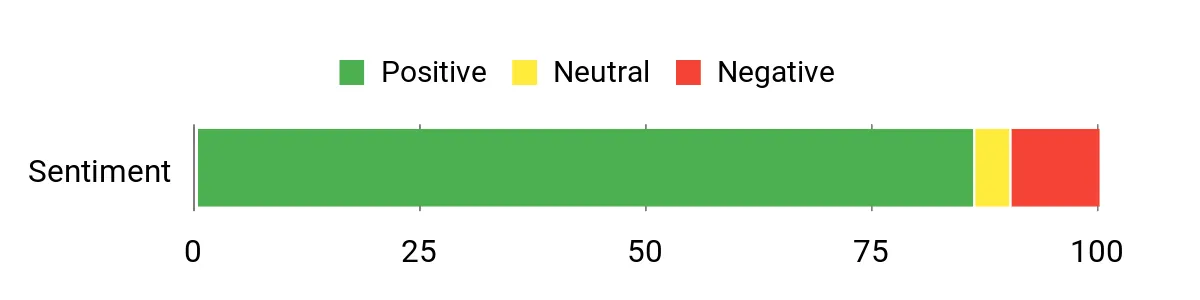
What People Say
Most people notice a clear speed and coverage improvement over older routers, and many like how easy it is to add nodes with AiMesh. Customers also appreciate the built‑in security tools and parental features that make managing devices easier. A handful of users mention firmware or app quirks and that the unit can run warm under heavy load, but those reports are relatively uncommon.
Overall Sentiment: Positive
Situational Benefits
Situation | How It Helps |
|---|---|
Family Streaming Nights | Keeps multiple 4K and HD streams running smoothly so everyone can watch without buffering. |
Homework & Remote Learning | Use scheduling and a kid’s network to limit distractions during study time while keeping school devices connected. |
Expanding Coverage | AiMesh support makes it straightforward to add additional ASUS nodes and create a seamless mesh across larger homes. |
Backup Internet or Travel | USB tethering and flexible WAN options let you bring a phone or mobile modem online quickly in case your main link goes down. |
Ease Of Use
Feature | Ease Level |
|---|---|
ASUS Router App Setup | Easy |
Web Admin Panel | Moderate |
AiMesh Expansion | Moderate |
Parental Controls / Kid’s Network | Easy |
Safety Features
AiProtection Pro (powered by Trend Micro) with one‑tap security scan and Safe Browsing, guest network and IoT SSID separation, WPA3 support, SPI firewall and automatic firmware updates to help keep the network current and safer for family use.
Child Friendliness
You can set up a dedicated kid’s network, apply schedules and pause internet access per device, and use content‑filtering tools to limit unsuitable sites. It’s not a toy for kids, but it gives you practical controls to enforce screen‑time rules without micromanaging every device.
Security Features
Feature | Protection Level |
|---|---|
AiProtection Pro (Trend Micro) | High — threat detection and malware blocking |
WPA3 Encryption | High — modern wireless encryption |
Guest Network / IoT SSID | Basic — isolates visitors and smart devices |
SPI Firewall & VPN Support | Moderate — blocks unsolicited access and supports secure remote access |
Reliability
Most users report steady day‑to‑day performance with good wired and wireless speeds, especially after initial setup. A few people note occasional app or firmware quirks and that it can run warm under heavy use, but overall it’s seen as stable and dependable once configured.
Key Benefits
- Wi‑Fi 7 features (MLO, 160MHz, 4096‑QAM) for faster, more consistent wireless performance
- AiMesh compatibility makes expanding coverage into a mesh simple
- 2.5 Gbps WAN support plus four 1 Gbps LAN ports for flexible wired connections
- Commercial‑grade AiProtection Pro (Trend Micro) and Safe Browsing for added network security
- Smart Home Master to isolate and manage IoT and kid devices with a dedicated SSID
- USB port and versatile WAN options for mobile tethering or backup internet
Rating: 4.4 (total: 6010+)
⭐ Best for Parental Controls

Gryphon AX
You get a router that’s built around keeping a busy household connected and (mostly) under control. The Gryphon AX combines Wi‑Fi 6 performance with a mesh setup so video calls, homework, and streaming don’t fight each other for bandwidth. Where it really stands out for families is the parental controls — you can set individual profiles, block apps and sites, and schedule or cap screen time without babysitting every device.
It’s also got modern security baked in, so you’re not just limiting access but watching for malware and intrusions too. For everyday life it simplifies juggling school devices, phones, and smart home gear; for occasions like a family movie night or a big video meeting it helps keep the network stable.
If you want parental controls that don’t require constant tweaking and a router that cares about security, this one’s worth a look.
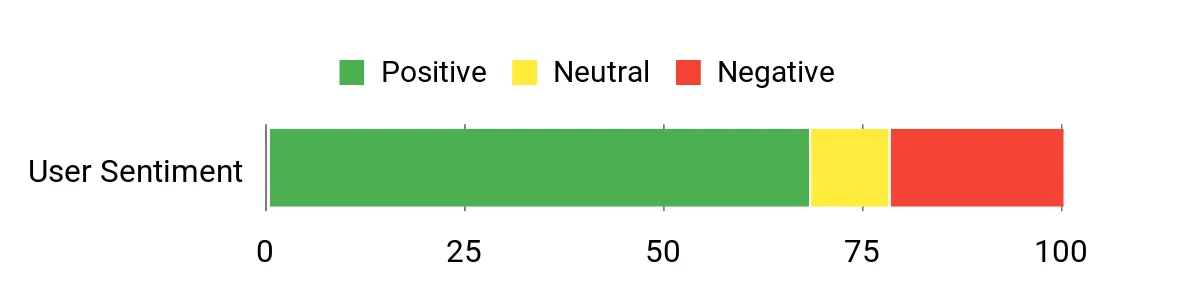
What People Say
Customers frequently praise the parental controls and find the profile and scheduling tools easy to use for managing kids’ screen time. Many also note stronger coverage and reliable speeds compared with older gear, plus the security features that flag malware or exposed devices.
A common caveat: setup and some advanced tweaks rely on the mobile app, and a minority report occasional app or firmware quirks.
Overall Sentiment: Positive
Situational Benefits
Situation | How It Helps |
|---|---|
Family Streaming Nights | Keeps multiple streams and devices from interfering so everyone can watch without buffering. |
Homework & Remote Learning | Use profiles and schedules to cut distractions during study time while keeping school devices online. |
Smart Home & Security Cameras | Built‑in scans and alerts help spot vulnerable devices and suspicious activity on the network. |
Occasional Heavy Use | Tri‑band Wi‑Fi 6 handles bursts of traffic for video calls or big downloads without dragging down other devices. |
Ease Of Use
Feature | Ease Level |
|---|---|
Mobile App Setup (Gryphon Connect) | Easy |
Profile & Schedule Creation | Easy |
Mesh Expansion / Adding Nodes | Moderate |
Advanced Network Tweaks | Moderate |
Safety Features
Active content monitoring, app and website blocking, individualized time limits and detailed usage insights, plus a next‑gen firewall that includes malware and ransomware protection and continuous intrusion detection.
Child Friendliness
The interface is built with families in mind: you can create kid profiles, set bedtimes and daily limits, and apply age‑appropriate filters. It’s not baby‑level simple, but it gets you practical control without needing networking expertise.
Security Features
Feature | Protection Level |
|---|---|
Next‑Gen Firewall (malware & ransomware protection) | High — blocks known threats and malicious sites |
Intrusion Detection & Intelligent Monitoring | High — watches for suspicious activity and alerts you |
Active Content Filtering & App Blocking | High — enforces age‑appropriate browsing and app limits |
WPA3 Wireless Encryption | High — modern wireless security |
Automatic Security Updates | Moderate — keeps protections current with vendor updates |
Reliability
Most users report steady day‑to‑day performance and improved coverage versus older setups. A portion of customers mention occasional firmware or app issues and the app‑only management model can be limiting for some, but overall it’s viewed as dependable once configured.
Key Benefits
- Advanced parental controls with per‑user profiles, time limits, app and site blocking
- Next‑generation firewall with malware and ransomware protection plus intrusion detection
- AX4300 Wi‑Fi 6 tri‑band performance and mesh coverage up to ~3,000 sq. ft. per unit
- Mobile app (Gryphon Connect) for setup, monitoring and easy device management
- Active device monitoring and security scans to flag vulnerable cameras or services
- Designed for multi‑device homes so streaming, calls and schoolwork run smoother
Rating: 3.8 (total: 540+)
FAQ
What Should You Look For When Choosing A Parental Control Router In 2026?
You should prioritize features that match how your family actually uses the internet: reliable coverage for your home footprint, enough device capacity for all phones and IoT devices, and a parental control system that supports device profiles, time schedules and content filtering. Look for a modern Wi‑Fi standard if you want longevity, but remember that newer standards trade range for speed; for many homes a well-placed dual‑band router is enough.
Make sure the vendor provides a clear management interface you like (app or web), strong security (WPA3, ability to disable remote admin) and regular firmware updates; check that the manufacturer publishes timely security patches and an active support channel. If you have many rooms or dead zones then consider mesh-capable models; if you want simpler device-level rules, premium routers and family-focused brands typically offer deeper filtering and logging.
Finally, verify compatibility with your ISP and whether the router supports features you rely on, like guest networks, separate IoT SSIDs, or hardware QoS.
How Reliable Are Router-Based Parental Controls And Can Kids Bypass Them?
Router-based controls are an important and effective first line for managing screen time and blocking categories of content, but they are not foolproof on their own. You can enforce schedules, pause internet access, and filter many web categories centrally so rules apply to every device on your home network, yet kids can often bypass router rules by switching to mobile data, using a VPN or connecting to another Wi‑Fi network when away from home.
To make controls more reliable, assign devices to profiles by MAC address, enable DNS or content filtering at the router level, separate guest and IoT traffic, and pair router controls with device-level restrictions and supervised accounts on phones, tablets and consoles; treat router controls as part of a layered approach rather than the only safeguard. Also keep an eye on logs and alerts so you spot attempts to bypass rules and update settings or device permissions as needed.
How Do You Set Up And Use Parental Controls To Manage Screen Time Effectively?
Start by inventorying every device your kids use and assign each to a named profile in the router app so you can apply schedules and limits per child rather than per device. Configure consistent bedtimes and homework blocks, enable content categories you want blocked, and use a separate guest SSID so visitors don’t inherit family restrictions; make sure to enable any built-in security suites and automatic firmware updates.
Place the router centrally for best coverage and, if a device is repeatedly misbehaving, use MAC binding to tie it to a profile or throttle its bandwidth with QoS. Complement router rules with device-level tools and family agreements so your children understand why limits exist and when exceptions are allowed; remember to test settings after you apply them and keep your admin password and remote-management features secured to prevent accidental or intentional changes.
Parents Top Picks
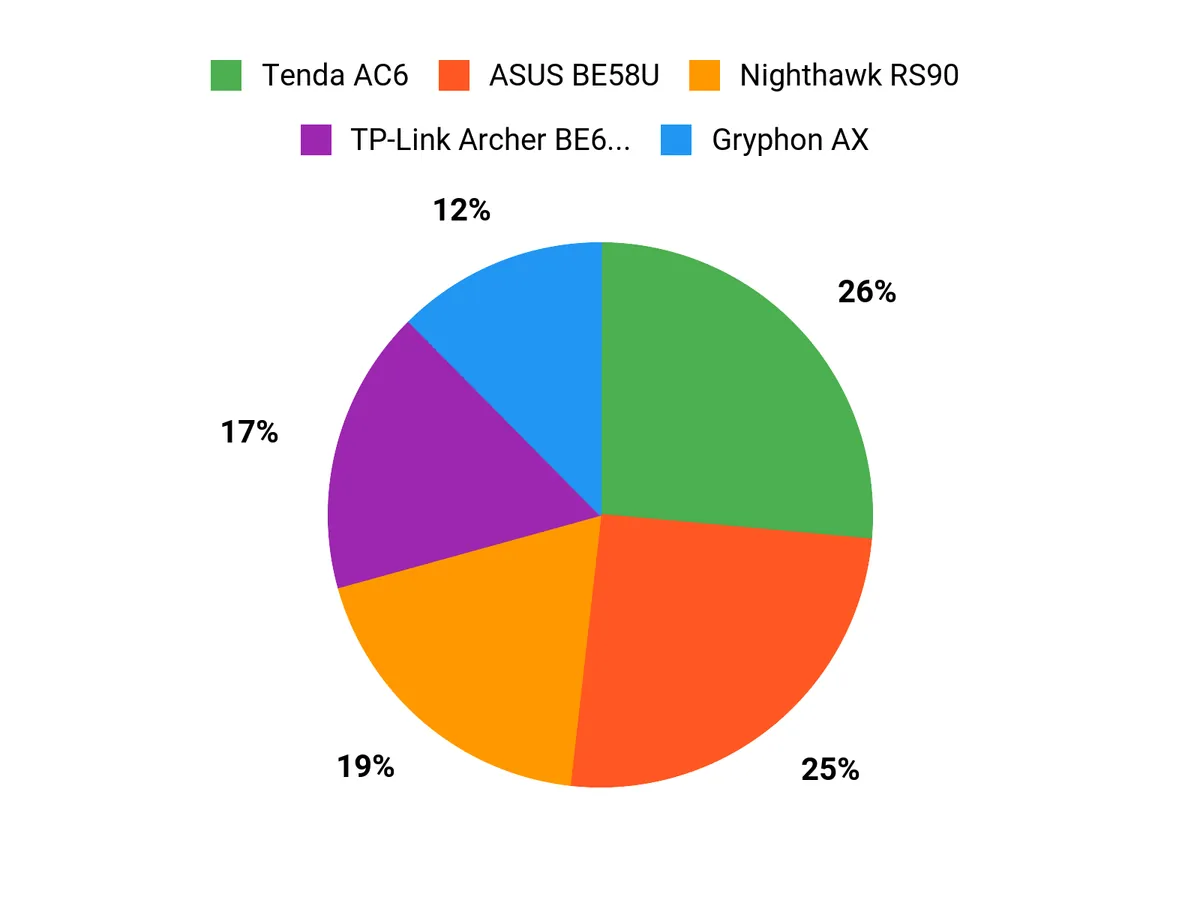
When comparing the Tenda AC6, Nighthawk RS90, and TP-Link Archer BE6500, you’re mainly looking for how easily the router lets you manage screen time—intuitive apps, per-device scheduling, and dependable parental controls are the top priorities. You also weigh Wi‑Fi performance and coverage, ongoing security and firmware support, and overall value so you get the speed and range your household needs without sacrificing simple, trustworthy controls.
Wrapping Up
Pick based on what matters most to your family. If you need an affordable way to add basic schedules and device pausing, the Tenda AC6 gives you simple parental controls at a very low price. If top speed and future-proofing are priorities, the NETGEAR Nighthawk RS90 and TP‑Link Archer bring Wi‑Fi 7 performance and strong security tools.
Choose the ASUS BE58U when you want a router that can grow into a mesh system, and pick Gryphon AX if your main goal is polished, family-focused filtering and monitoring. Whatever you choose, you’ll gain one consistent benefit: the ability to manage screen time and online safety in a way that fits your household routine.
| Product | Image | Rating | Wi-Fi Standard | Speed | Coverage Area | Special Highlights |
|---|---|---|---|---|---|---|
| Tenda AC1200 Smart WiFi Router |  | 4.0/5 (18,701 reviews) | 802.11a/b/g/n/ac | AC1200 (up to 867 Mbps on 5GHz and 300 Mbps on 2.4GHz) | Up to 1500 sq. ft. |
|
| NETGEAR Nighthawk Dual-Band WiFi 7 Router |  | 4.3/5 (1,521 reviews) | Wi-Fi 7 (802.11be) | Up to 3.6 Gbps | Covers up to 2000 sq. ft. |
|
| TP-Link Archer BE6500 Dual-Band Wi-Fi 7 Router |  | 4.4/5 (755 reviews) | 802.11be | Up to 10 Gbps total via Multi-Link Operating | Covers up to 2400 sq. ft. |
|
| ASUS RT-BE58U WiFi 7 Router |  | 4.4/5 (6,010 reviews) | 802.11be | Up to 3600 Mbps | Up to 2000 sq. ft. |
|
| Gryphon AX Mesh WiFi 6 Router |  | 3.8/5 (540 reviews) | 802.11ax | Up to 4.3 Gbps | Covers up to 3000 sq. ft. |
|
This Article is reader-supported. When you click through links we may earn a referral commission on qualifying purchases.